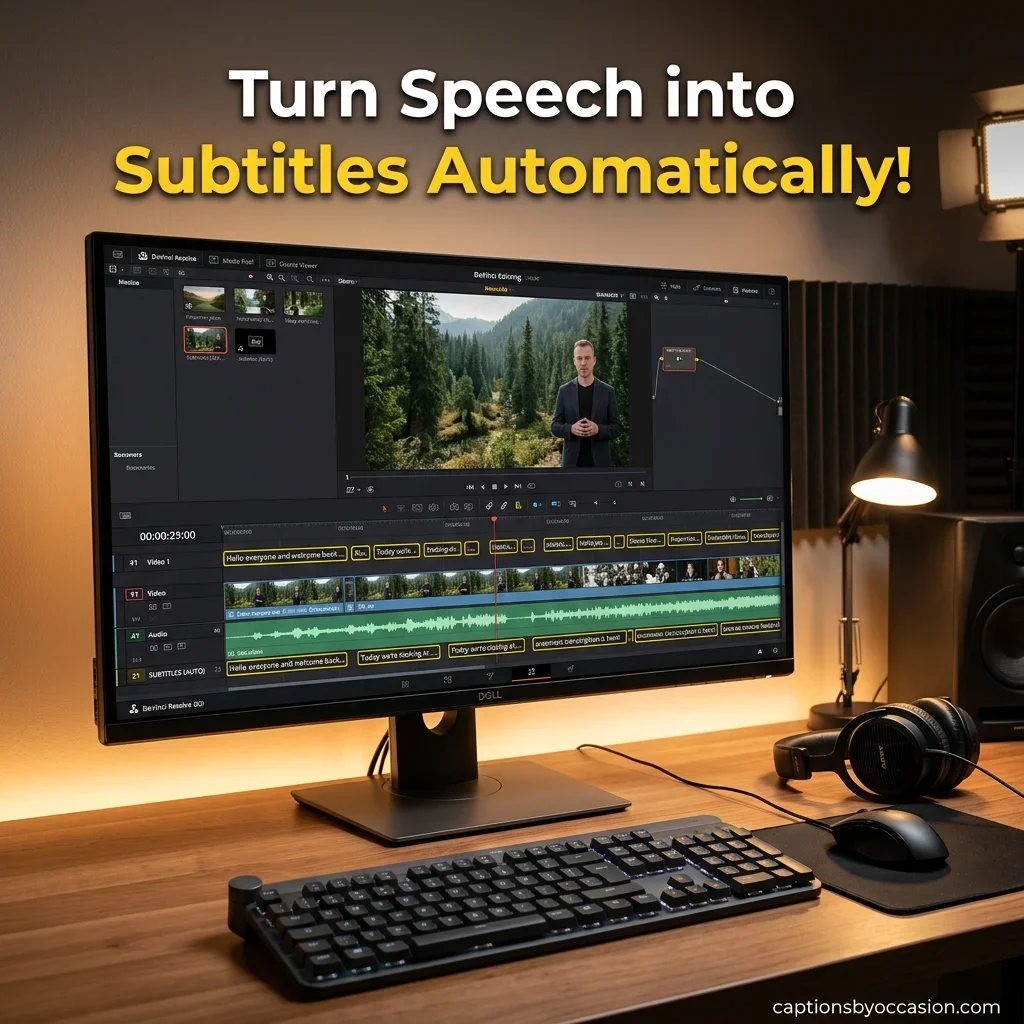
If you edit videos for YouTube, TikTok, Instagram Reels, or client projects, you already know captions are no longer optional. Most people scroll with the sound off, and captions also help with accessibility and watch time. The good news is that DaVinci Resolve auto captions can turn your spoken audio into editable subtitles in a few minutes, with no manual typing.
This guide covers how auto captions work in DaVinci Resolve, which version you need, how to style them, and how to fix the usual problems. It’s written for US creators, editors, and small business owners.
Table of Contents
What Are DaVinci Resolve Auto Captions?
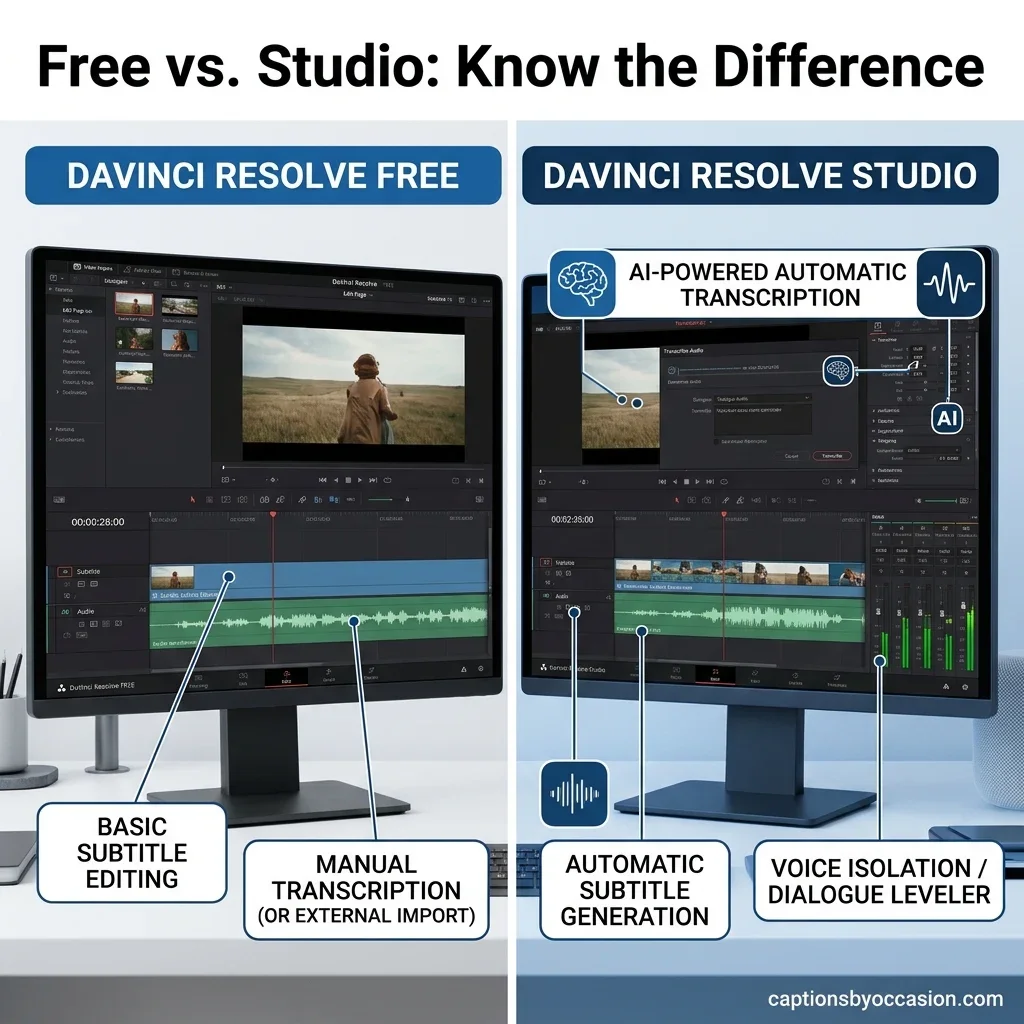
DaVinci Resolve auto captions are AI-generated subtitles created from the audio on your timeline. The tool is called Create Subtitles from Audio. It uses the DaVinci Neural Engine for speech-to-text and places the result on a subtitle track above your video.
Blackmagic Design added the feature in version 18.5. It is a big deal for editors who used to switch to other apps or pay for outside transcription tools.
Quick answer: In Resolve Studio, go to Timeline > Create Subtitles from Audio (in newer versions, Timeline > AI Tools > Create Subtitles from Audio), choose your settings, and click Create.
Is Auto Captioning Available in the Free Version?
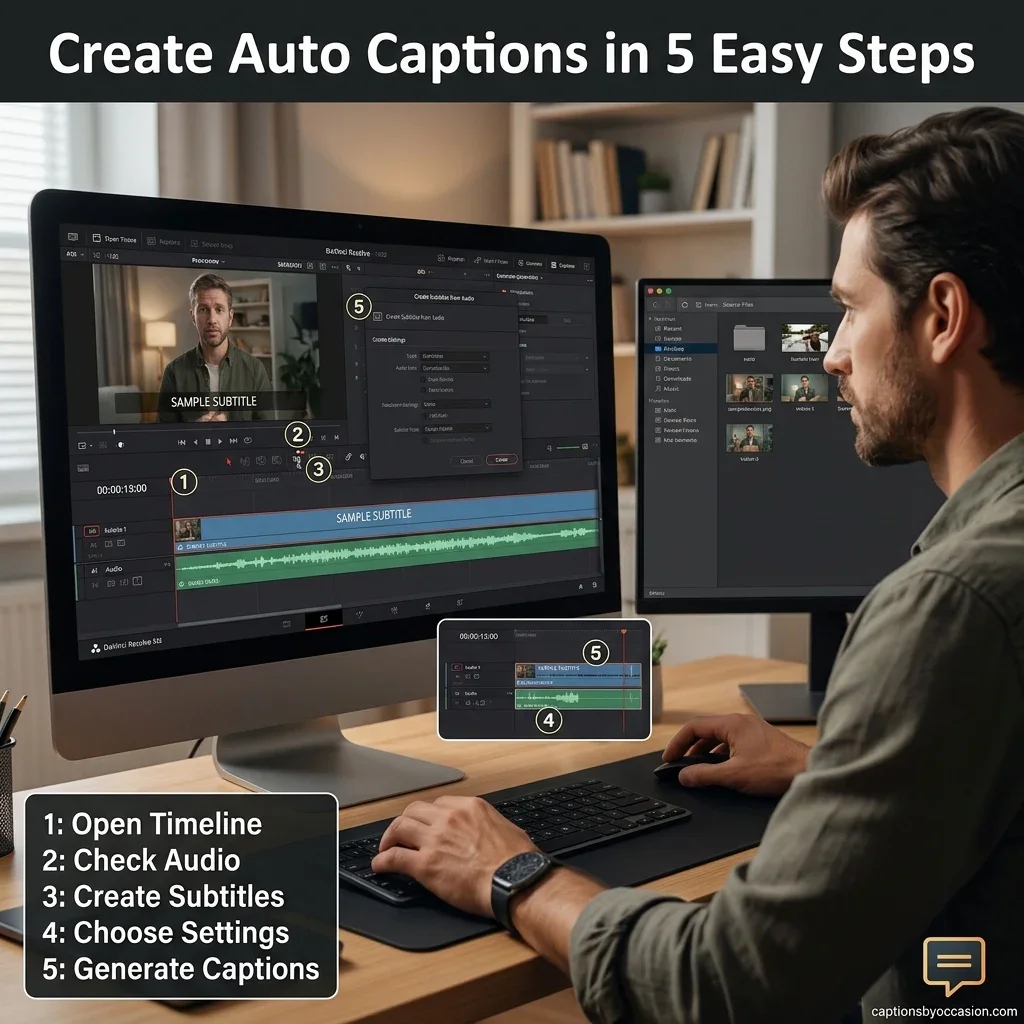
No. Native auto captions are a Studio-only feature. Here is how the two versions compare:
| Feature | Free Version | Studio Version |
|---|---|---|
| Manual subtitle track | Yes | Yes |
| Import SRT subtitle files | Yes | Yes |
| Style captions in the Inspector | Yes | Yes |
| Export SRT or burn-in subtitles | Yes | Yes |
| Create Subtitles from Audio (AI) | No | Yes |
| Audio transcription and text-based editing | No | Yes |
If you only use the free version, you can still get automatic captions by generating an SRT file with an outside tool and importing it. More on that below.
How to Add Auto Captions in DaVinci Resolve (Step by Step)
Step 1: Open Your Timeline on the Edit Page
Open your project and load the timeline you want to caption. If you only need captions for one section, set In and Out points (press I and O) around it.
Step 2: Check Your Audio
Auto subtitles work best with clear speech. Before you start:
- Use stereo or mono audio. Surround sound can cause problems.
- Reduce loud background music or sound effects.
- Make sure the dialogue is on an active track.
Step 3: Run Create Subtitles from Audio
Go to Timeline > Create Subtitles from Audio. In Resolve 21 and newer, it is under Timeline > AI Tools.
Step 4: Choose Your Caption Settings
You will see options like these:
- Language: Pick English or leave it on Auto so Resolve detects the language.
- Caption Preset: Subtitle style, such as standard or social-media friendly.
- Max Characters per Line: Around 32 to 42 is a good range for readability. Shorter works better for vertical video.
- Lines: Single or double line.
- Gap Between Subtitles: Leave at the default unless you want extra spacing.
Step 5: Click Create
Resolve processes the audio and adds a new subtitle track on your timeline. Play it back and check the timing.
How to Edit and Fix Auto Captions in DaVinci Resolve
AI transcription is fast, but it is rarely perfect. Always review it. Common things to fix:
- Names and brands: Proper nouns, product names, and slang are often misspelled.
- Punctuation: Add commas, question marks, and capitalization where needed.
- Line breaks: Split long captions so they read naturally.
- Timing: Drag caption edges on the subtitle track to match speech.
To edit text, click a subtitle clip and change the text in the Inspector. You can also use the Edit Subtitle tools to merge or split captions quickly.
How to Style Subtitles in DaVinci Resolve
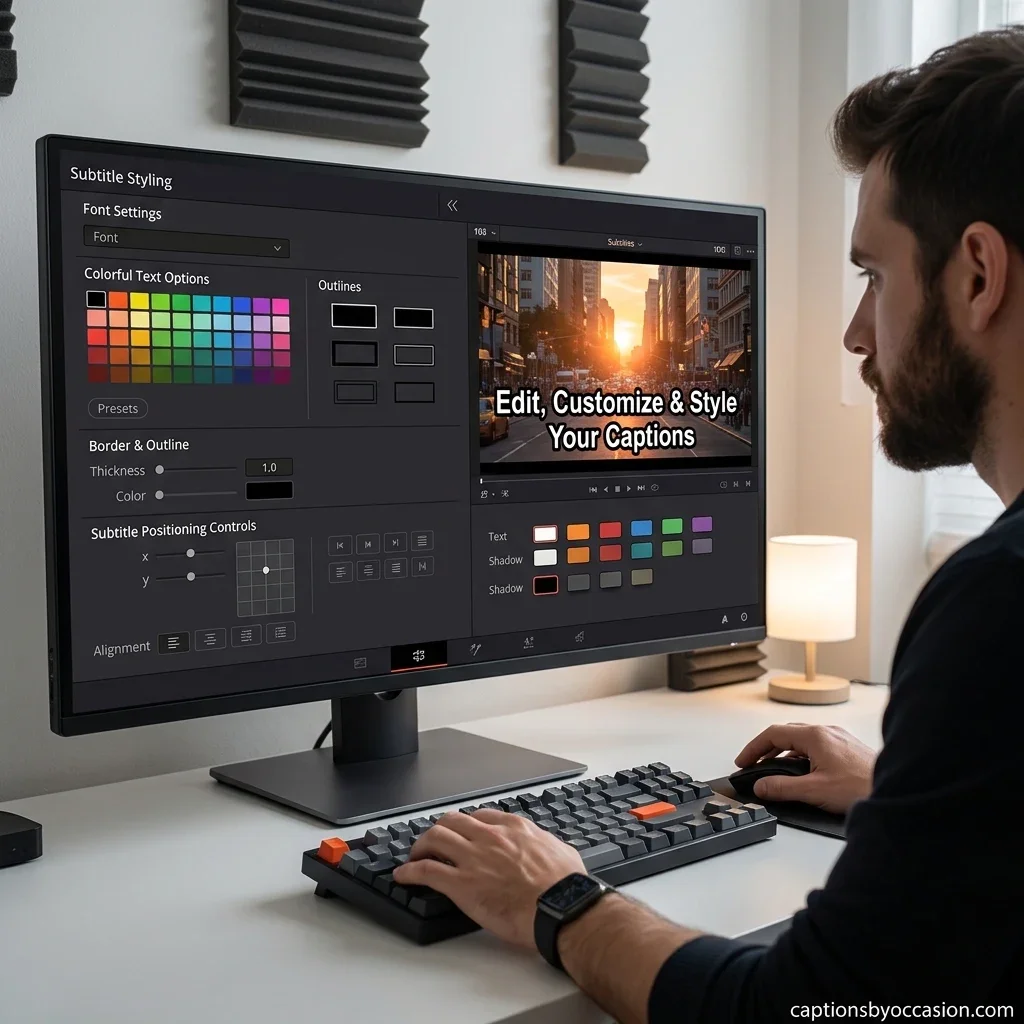
Plain white captions work, but styled captions hold attention. In the Inspector, you can change:
- Font and size: Use bold sans-serif fonts for the best readability.
- Color and outline: White text with a black outline is the safest choice.
- Background box: Adds contrast on busy footage.
- Position: Keep captions away from the very bottom on social platforms, where app buttons and UI cover text.
For animated, word-by-word captions like those on viral Reels and Shorts, many editors convert subtitles into Text+ or use third-party templates and plugins.
How to Get Auto Captions in the Free Version of DaVinci Resolve
You have three practical options:
- Use an outside transcription tool. Generate an SRT file, then import it through File > Import > Subtitle.
- Use a free script or plugin. Community tools built on speech models such as Whisper can generate subtitles inside the free version.
- Caption manually. Add a subtitle track and type each caption yourself. It is slower but costs nothing.
Whichever you choose, make sure the SRT was generated from the same edit you have on the timeline. Otherwise the timing will drift.
How to Export Captions from DaVinci Resolve
You have two main choices on the Deliver page:
- Burned-in captions: The text is permanently part of the video. Good for TikTok, Reels, and Shorts.
- Separate SRT file: Upload it to YouTube, Vimeo, or Facebook so viewers can toggle captions on and off. This is better for accessibility and SEO.
In Deliver, open the Subtitle Settings section under the Video tab and choose Export Video with either Burn into video or As separate file.
Best Practices for Accurate Auto Captions
- Record clean audio with a decent microphone.
- Speak at a steady pace and avoid talking over music.
- Reset the timeline start timecode to zero if timing looks off.
- Duplicate your timeline before generating captions so you have a backup.
- Proofread every caption, especially names and numbers.
- Keep captions to one or two lines for easy reading.
Common DaVinci Resolve Auto Caption Problems and Fixes
The Create Subtitles from Audio option is greyed out or missing.
You are probably on the free version. Upgrade to Studio or use an SRT workflow.
Captions are out of sync.
Check your timeline start timecode and make sure you captioned the final edit, not an older version.
The text has many errors.
Improve the audio, lower background music, or choose the correct language manually instead of Auto.
Captions won’t generate for my language.
Resolve supports a limited list of languages. For unsupported languages, use an outside tool and import an SRT.
Captions are too long for vertical video.
Lower the Max Characters per Line and use a single-line setting.
DaVinci Resolve vs. Other Auto Caption Tools
| Tool | Best For | Drawback |
|---|---|---|
| DaVinci Resolve Studio | All-in-one editing and captioning | Requires a paid license |
| Premiere Pro | Speech-to-text inside Adobe’s ecosystem | Subscription cost |
| CapCut | Fast, trendy social captions | Less control for professional work |
| Descript | Text-based editing | Separate app and workflow |
If you already edit in Resolve, the native tool saves time because there is no exporting, re-importing, or switching apps.
Why Captions Matter for US Audiences
- Accessibility: Captions help deaf and hard-of-hearing viewers and support ADA-minded content standards.
- Sound-off viewing: Many viewers watch on phones in public or at work.
- Retention: Captions keep viewers reading and watching longer.
- SEO: Uploading an SRT to YouTube gives search engines more text to understand your video.
- Clarity: Captions help with accents, fast speech, and technical terms.
Frequently Asked Questions
Does DaVinci Resolve have auto captions?
Yes. The Studio version includes Create Subtitles from Audio. The free version does not.
How much does DaVinci Resolve Studio cost?
Studio is a one-time purchase, listed at around $295 at the time of writing. Check Blackmagic Design’s site for current pricing.
Can I auto caption in DaVinci Resolve for free?
Not natively. You can import SRT files made with outside tools or use community plugins.
How accurate are DaVinci Resolve auto captions?
They are good with clear audio but still need proofreading, especially for names, slang, and noisy recordings.
Can I edit auto-generated subtitles?
Yes. Every caption is editable in the Inspector and on the subtitle track.
Can I export captions as an SRT file?
Yes. Use the Deliver page and choose to export subtitles as a separate file.
Can I animate captions in DaVinci Resolve?
Yes, by converting subtitles to Text+ or using plugins and templates for word-by-word animation
Final Thoughts
DaVinci Resolve auto captions can save hours of manual work and make your videos more accessible and engaging. If you own Studio, Create Subtitles from Audio is the quickest way to get started. If you use the free version, an SRT workflow still gets you there. Either way, always review the text before publishing.
Ready to try it? Open your next project, run Create Subtitles from Audio, and see how much time you save.

William Mesum is the founder and lead writer behind Captions By Occasion, a content platform dedicated to helping people find the perfect words for every moment they want to share. With a background in digital content and social media writing, William has spent years studying how language, tone, and timing shape the way people connect online.